
Designing for 3D printing is more than just making a 3D model. It’s understanding how big you want your figurine to stand on your desk, how thin your ring can be in plastic versus gold, and keeping track of all the details on intricate models while making sure all the parts are connected. We launched Shapeways 3D tools in January to help bridge the gap between creating and designing a 3D model and actually having it printed by giving you more confidence to know when your model is ready for the printers.
Today we are launching two new visualizations in 3D tools to help you further understand what your model will look like when it lands in your hands: a bounding box visualization and a part count visualization.
Understanding Model Size: Material Specific Bounding Box Visualization
Understanding how big or small your model is physically and what materials you can print it in based on its size can be challenging when you are staring at your model on a screen and can easily zoom in and out. This is especially true if you are designing for multiple materials – what’s the right size model that lets you print in all your favorites? Understanding how to change your model to make it the right size – is one part of the model too long? Do I just need to scale it slightly smaller? – can be tricky without being able to see the maximum and minimum size you can print in for a specific material.
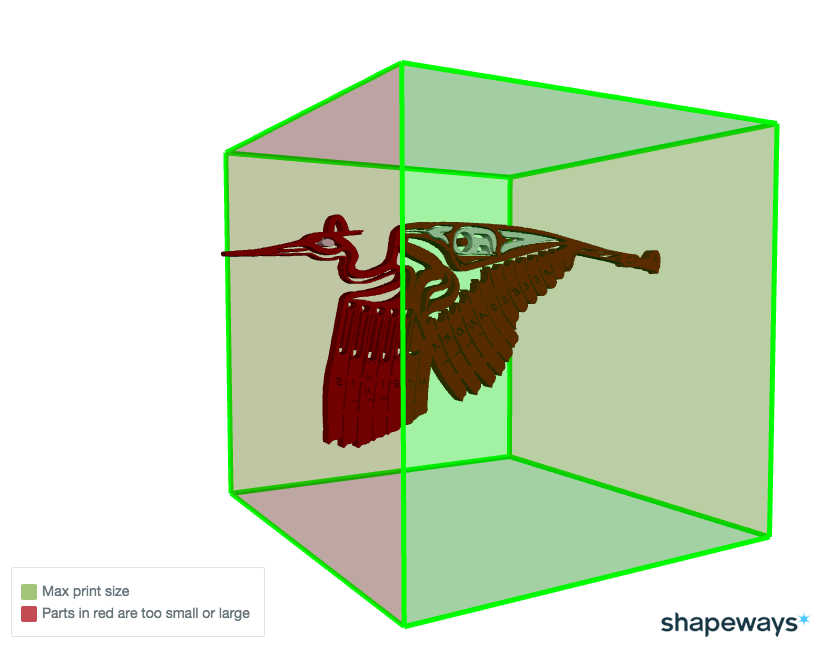
By clicking on the bounding box tool in 3D tools, you can understand both how large or small your model is in relation to the bounding box for a specific material, and what part of your model is too big or small. Our visualization combines two elements: coloring parts of the model that are too big or too small red so you know which parts have issues, and visualizing the maximum and minimum bounding box oriented around your model as a transparent box.
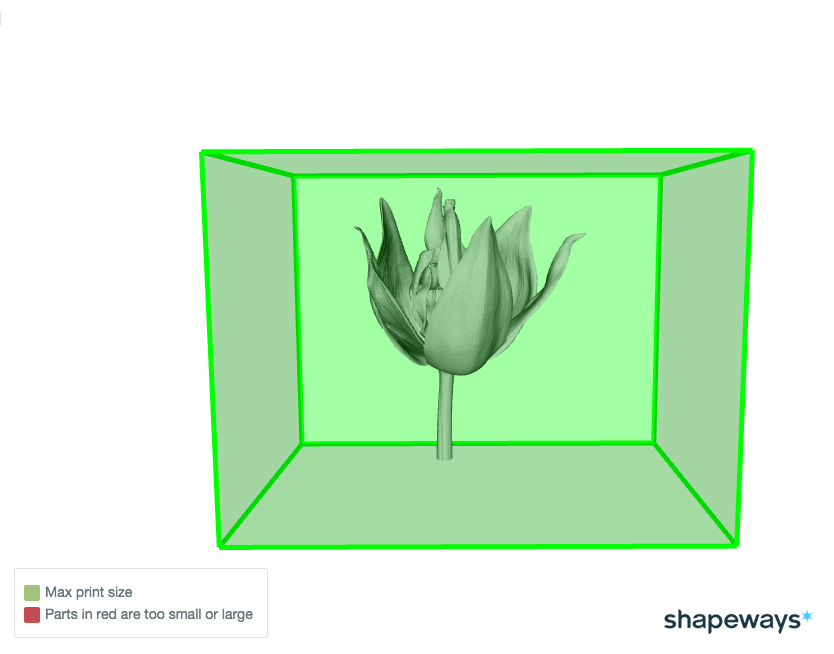
When your model is within the size guidelines to be printed, you will see it inside the maximum bounding box. So if you were thinking of making it a bit bigger or smaller, you can get a sense for how much you could change the size of your model.
try it now
If your model is too large, the part of the bounding box where the model is sticking outside the maximum bounding box will turn red to help you identify along which dimensions your model is too large. If you have a multiple part model, only the parts of the model that exceed the bounding box size restrictions will turn red. Parts of your multiple part model that are OK in size will remain grey.
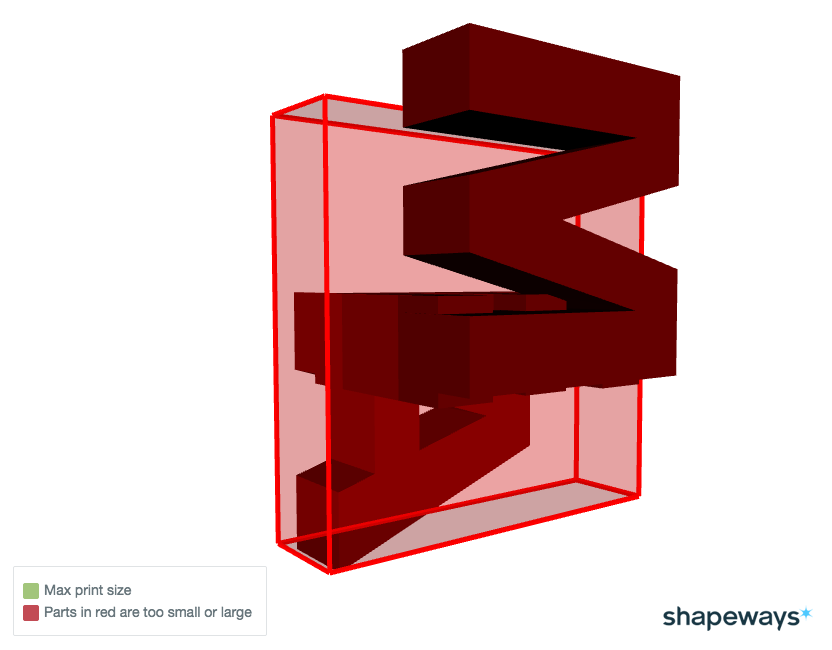
If your model is too small, you will see it colored red inside a minimum bounding box. By moving your model around, you can see which dimension(s) of your model are too small.
Identify Accidental Loose Shells: Part Count Visualization
Building detailed, complex models can result in incredible creations that are a marvel to hold and see. Sometimes though, with so many details and parts, loose shells can accidentally be created. Loose shells are pieces of your model that are separate and unconnected from the base part of the model. These can be intentional, but are often unintentional.
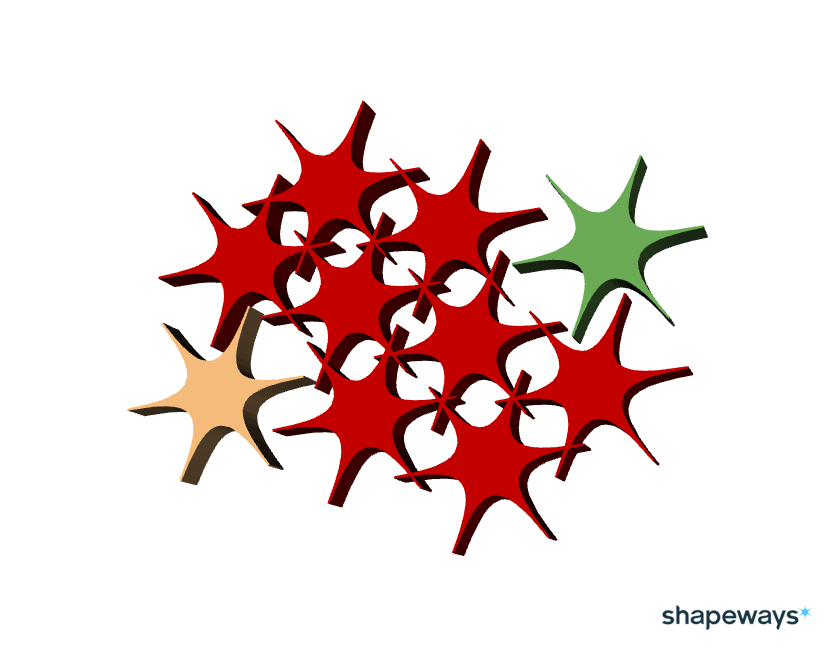
Our new part count visualization helps protect you from ordering a model you expect to come in one piece, but actually receive in many pieces because it uniquely colors each and every part. For example, in this model made of connected stars, all the stars were intended to connect to each other except two of them were slightly misaligned. With the part count visualization, you can clearly see the accidental loose shells – the two unconnected stars – and fix your model appropriately.
Go to 3D tools today from My Models or Model Edit and check out your models in the bounding box and part count tool to see how big or small your models are or if you have any accidental loose shells!